Watch the walkthrough
Hungarian narration · English and Hungarian subtitles
The screenshots show the Hungarian interface in our own demo account. Menu names are translated in the instructions below.
Before you begin
- An existing chatbot and permission to use the URL and PDF content.
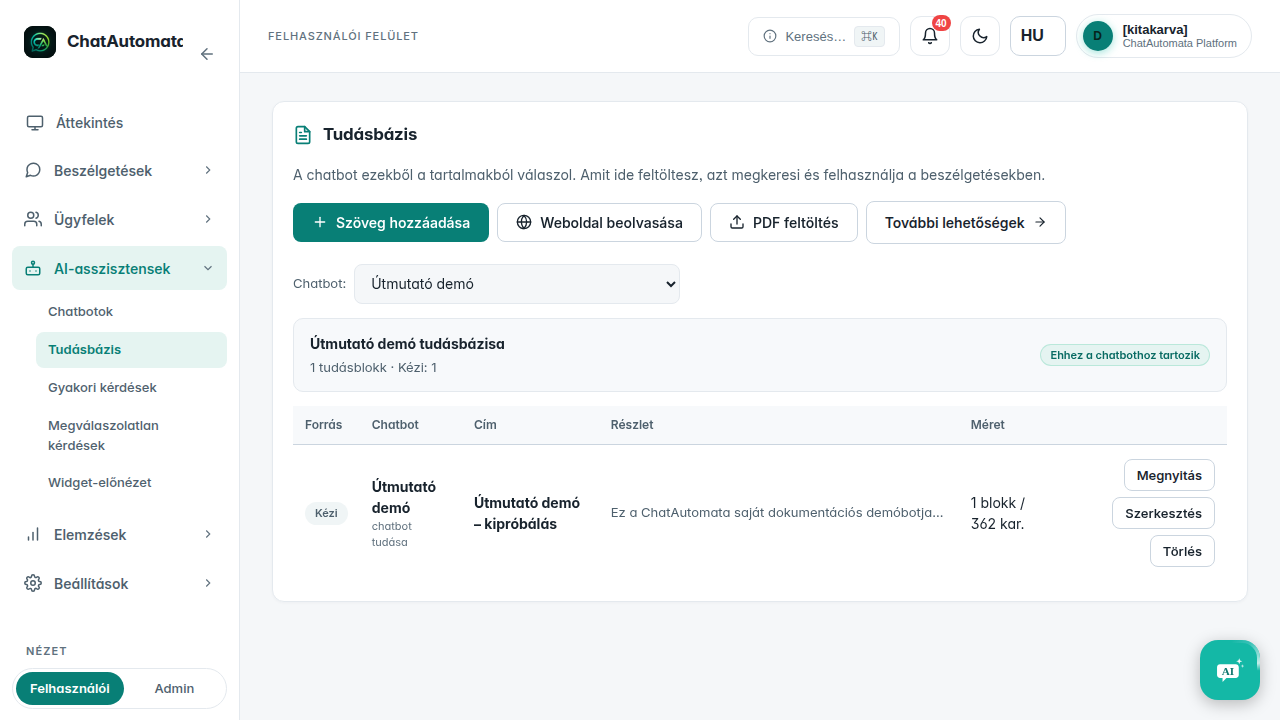
01Open the knowledge base
Go to AI assistants → Knowledge base.
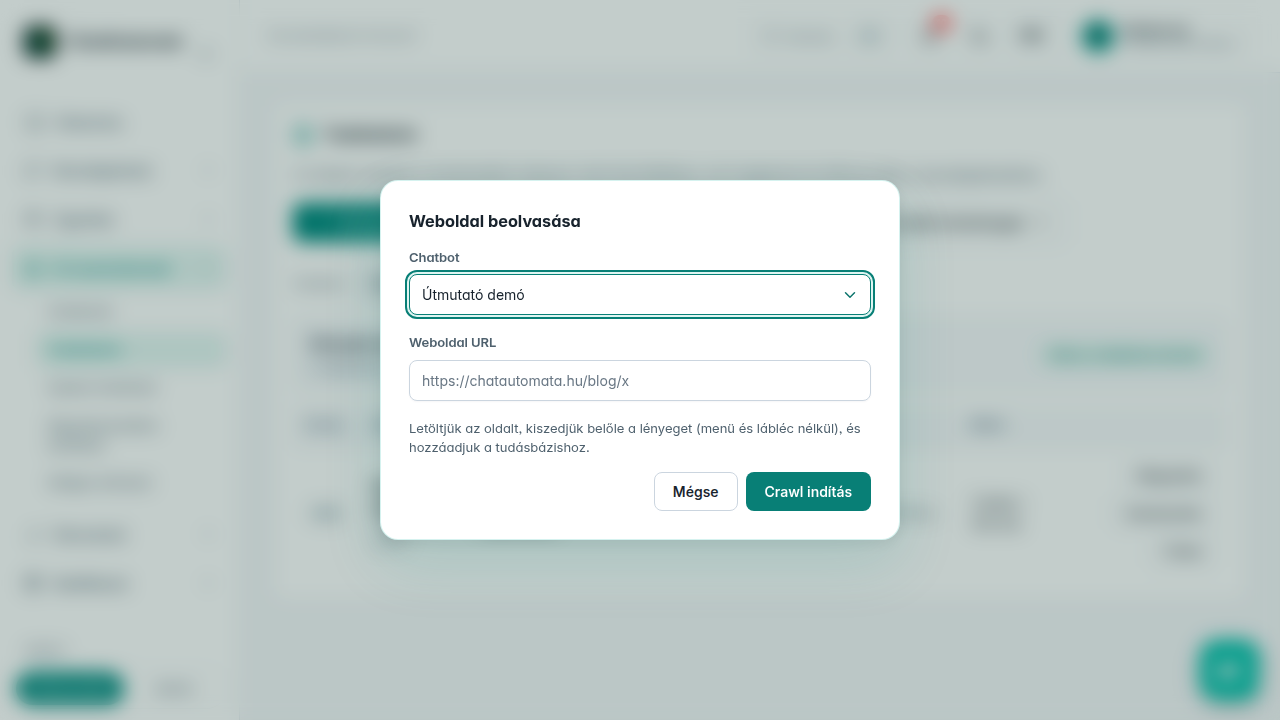
02Read a website
Select Read website, choose the chatbot and enter a publicly accessible URL, then start the import.
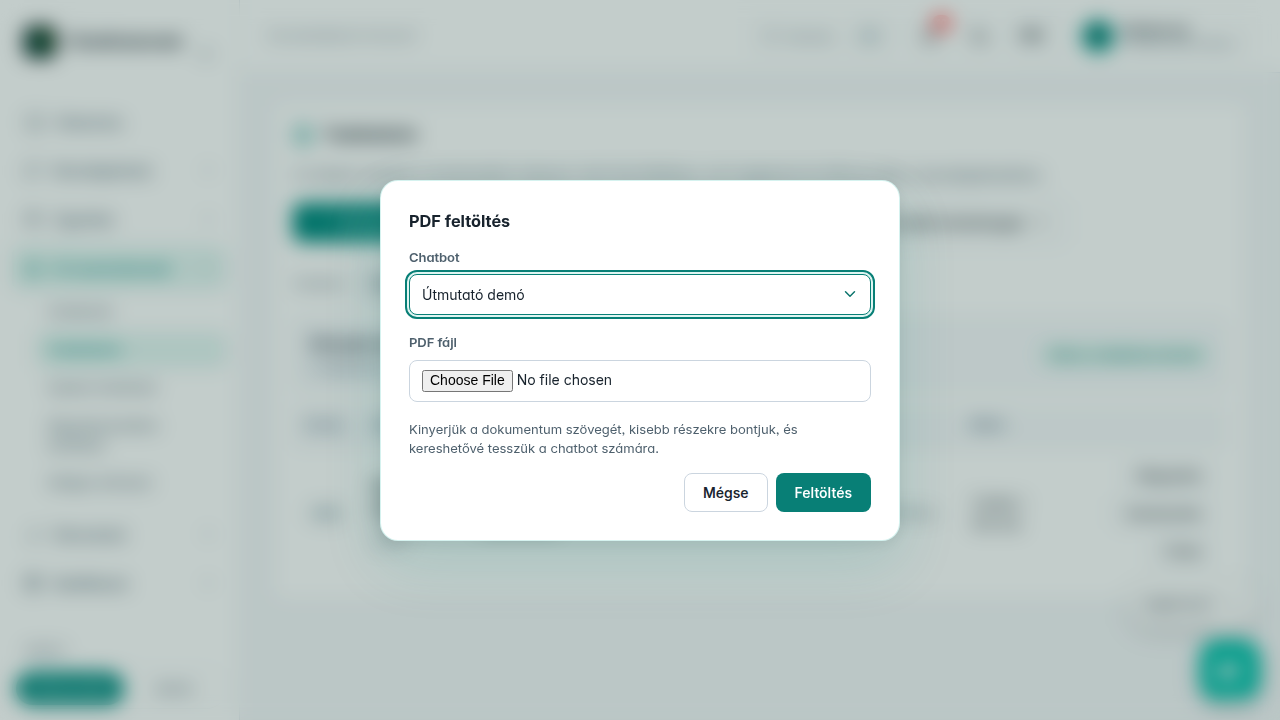
03Upload a PDF
Select PDF upload, choose the chatbot and a file, then start the upload. Wait for processing.
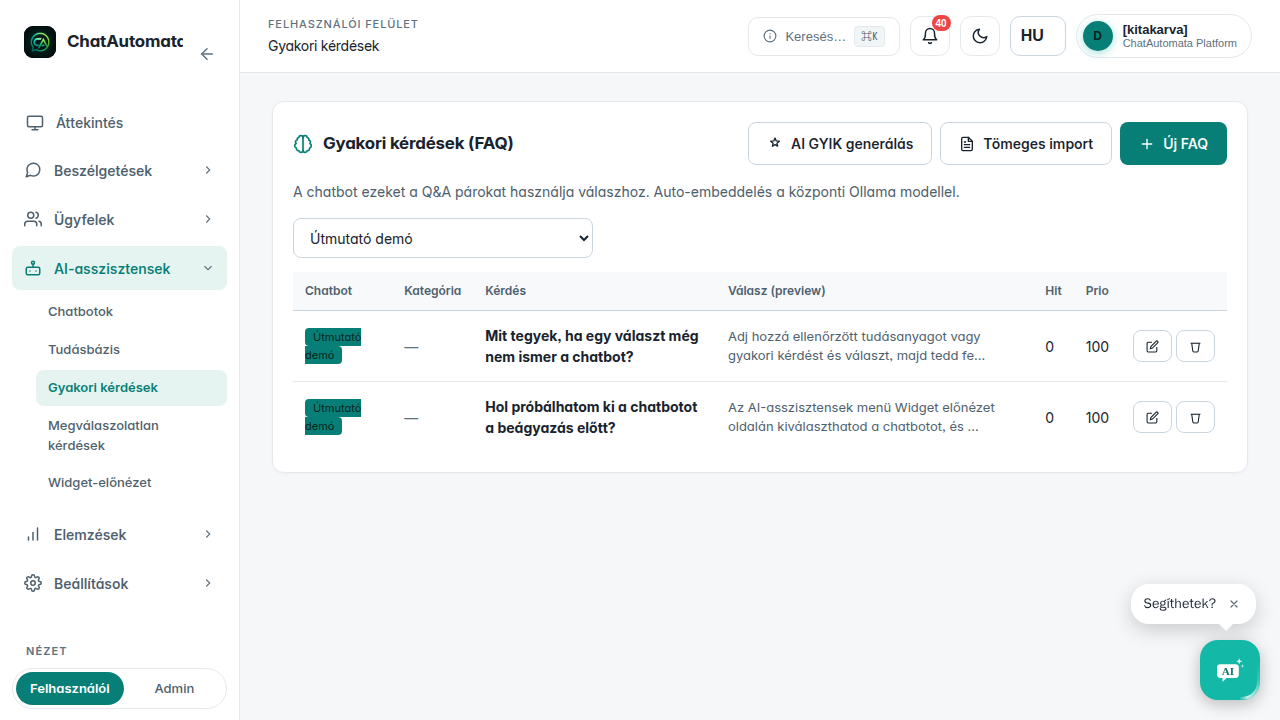
04Add an FAQ
Open AI assistants → FAQ editor and create a reviewed question and answer.
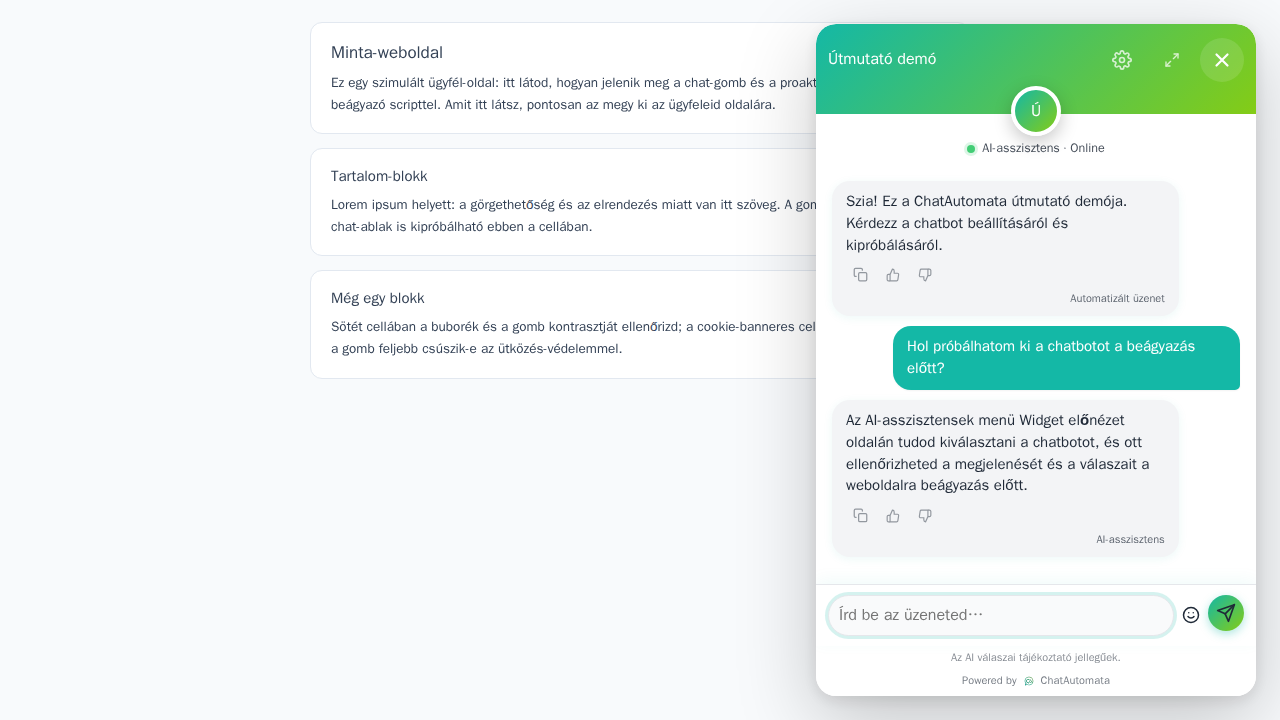
05Check the answer
In Widget preview, select the same chatbot and ask about information you added. Compare the facts with the original source. If the answer is inaccurate, correct the knowledge or FAQ entry and test again.
Check your result
- The processed source appears.
- The answer agrees with the source.
Questions & answers
Is entering my site URL in bot settings enough?
Start the website import separately in the knowledge base.
Read the video transcript
Knowledge base: website, PDF and FAQ.
Open the knowledge base. Go to AI assistants → Knowledge base.
Read a website. Select Read website, choose the chatbot and enter a publicly accessible URL, then start the import.
Upload a PDF. Select PDF upload, choose the chatbot and a file, then start the upload. Wait for processing.
Add an FAQ. Open AI assistants → FAQ editor and create a reviewed question and answer.
Check the answer. In Widget preview, select the same chatbot and ask about information you added. Compare the facts with the original source. If the answer is inaccurate, correct the knowledge or FAQ entry and test again.