How to train a chatbot on your own content
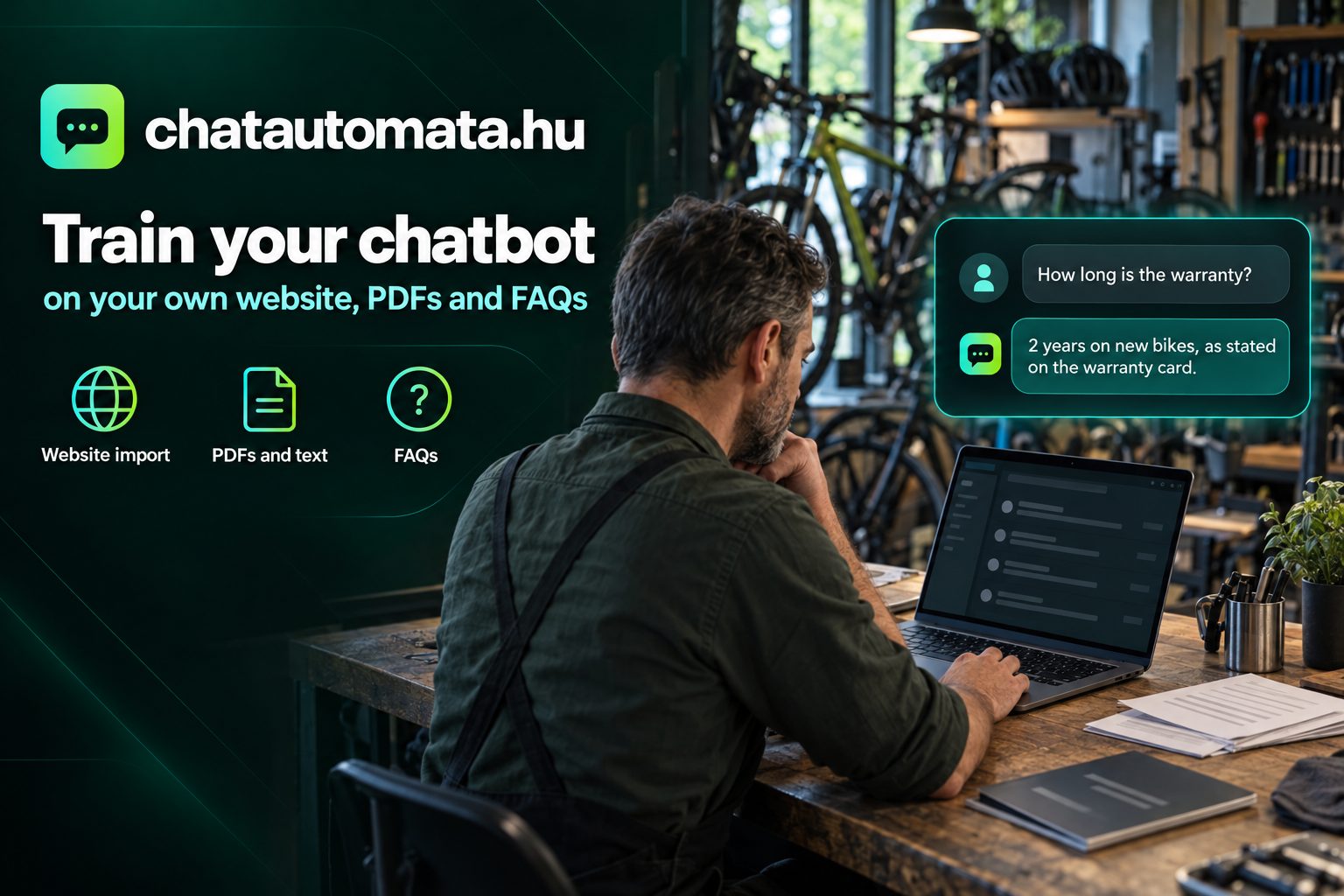
Your chatbot knows exactly as much about your business as you teach it. If it has only read your homepage, it will either say nothing about delivery times, warranty or parking, or admit that it doesn't know. That is the better outcome. The worse one is when it quotes a price list you forgot about two years ago.
This article walks through where a chatbot learns from, what to upload and what to leave out, how to write FAQs the bot can actually find, and how to keep its knowledge fresh in fifteen minutes a week. The examples use the ChatAutomata dashboard, built for Hungarian small businesses, but the principles apply to any AI chatbot.
Where does the chatbot learn from? Four knowledge sources
A well-configured chatbot isn't "generally smart". It answers from your material. In ChatAutomata you can build its knowledge from four kinds of source:
- Your website. Enter your site's address and the system reads the text. You can add subpages one by one, or several at once from your sitemap.xml: one import handles up to 50 pages and can be run again, so a larger site gets in step by step.
- Documents and text. Upload PDFs or paste text directly: policies, product descriptions, internal guides.
- FAQs. Question-and-answer pairs you write yourself. These are the most precise, because the answer is word for word yours.
- Live data from integrations. For a webshop, products, prices and stock don't belong in the knowledge base. They come from the webshop connection or a product feed (Árukereső or Google Shopping format), which update themselves; the feed, for example, every hour.
Together these make up what the bot knows. For each answer it looks up the pieces that best match the question and writes its reply from them. The search understands Hungarian inflected forms, so a question phrased one way still finds a section titled another way. If the answer isn't in your material, the bot doesn't guess: it can ask for the visitor's contact details so you can reply yourself. We covered this in detail in our article on lead generation.
What should you upload?
Start with what your customers actually ask. Open the last two months of emails and Messenger messages and note what keeps coming up. For a typical small business it comes down to eight to ten topics:
- Prices and packages, with the conditions (what's included, what costs extra).
- Delivery and pickup: fees, lead times, where and when to collect in person.
- Opening hours and contact details, including holiday changes.
- Payment methods and invoicing.
- Warranty, exchanges and returns: the essence of your terms in plain language.
- Service descriptions: how long it takes, how to prepare, what the customer should bring.
- How booking works, if you take appointments.
- Directions and parking, if you have a physical location.
Most of this is already on your website, just scattered. That's why it makes sense to start with the website import and then fill the gaps with PDFs and FAQs. You'll often find that the most common question (say, about in-person pickup) isn't answered on the website either. In that case, fixing it improves both the bot and your site.
What shouldn't you upload?
With a knowledge base, less is sometimes more. A few things actively make answers worse:
- Outdated price lists and expired offers. If both the 2024 and the 2026 price list are in there, the bot can't tell which one is valid. Keep only the current one.
- Sources that contradict each other. If your website says delivery takes 3 working days and the PDF says 5, decide first, then fix both.
- Personal data. Customer names, email addresses, phone numbers and old correspondence must not go into the knowledge base. If you use old emails as a guide, write down only the gist of the question, without names.
- Internal information you wouldn't tell a customer, such as purchase prices, margins or a dispute with a supplier. Whatever the bot knows, it may say.
- Pure mood marketing. Paragraphs about "passion, quality and reliability" answer nothing and only dilute the search results.
A good rule of thumb: if you wouldn't write a sentence word for word in an email to a customer, leave it out.
FAQs: write them in your customer's words
FAQs are the strongest part of a knowledge base, but only if you write them well. The most common mistake is phrasing the question the way the business talks, not the way the customer asks.
A real example from our own sales bot: we loaded our case study pages into its knowledge base, yet when asked "Do you have references?" it replied that it had no such information. The content was there, but labelled "case study", while the visitor asked about "references". The fix was a single FAQ whose question field contained several phrasings: "Do you have references? Who already uses it? Any examples or case studies?" From then on the bot answered correctly.
Three rules follow from this:
- Put synonyms in the question field. "How much is delivery? What does home delivery cost? Is there free shipping?" — all in one FAQ.
- Keep the answer short and concrete. Two or three sentences, with numbers and deadlines. If it needs a longer explanation, point to the relevant page at the end.
- Think about what's public. In ChatAutomata, visitors can browse FAQs in the widget's "All FAQs" window. Text and PDFs uploaded to the knowledge base are closed: the bot uses them, but visitors can't list them.
Build it in one afternoon
You don't need weeks of preparation. For most small businesses one afternoon is enough for a solid first version.
- Import your website (15 minutes). In AI assistants → Knowledge base, choose the chatbot and add your homepage, then the key subpages: prices, services, delivery, contact, FAQ, terms. For a larger site, use the sitemap import.
- Documents (15 minutes). Upload your current price list, your warranty terms and the information sheet you currently email to customers.
- Ten to fifteen FAQs (45 minutes). From the most common questions, following the rules above, with synonyms.
- Test with real questions (30 minutes). Ask the bot the twenty questions customers ask most, the way they'd type them: with typos, informally, in half sentences. Wherever the answer is wrong or thin, fill the gap.
- Tone and style (10 minutes). In the chatbot settings you can choose formal or informal address, and describe the style it should use in the system prompt.
If the import shows a "BOT PROTECTION" error, your site's protection (for example Cloudflare's check) is blocking automated reading. You'll need to allow ChatAutomata's fetcher in that protection, or provide the same content as a PDF or FAQs. The exact steps are in the documentation.
An example. Take a bicycle shop that also does repairs. From the website, the repair price list, opening hours and contact details go in. The warranty terms and a winter storage guide are uploaded as PDFs. Twelve questions go into the FAQs: how long a puncture repair takes, whether you need to book ahead, how long the warranty on a new bike is, whether spare batteries are available for e-bikes, where to park. With this much material the bot answers most incoming questions on its own, and asks for contact details on the rest.
Webshops are different: live data instead of the knowledge base
For a webshop, don't upload product data as a PDF or text. Prices and stock change daily, and the bot would soon quote outdated figures. Connect the webshop instead (WooCommerce, Shopify, Shoprenter, Unas and others) or a product feed. The bot then searches your products live and quotes the real price and stock. The knowledge base only gets what doesn't change daily: delivery, payment, exchanges, warranty. More on this on our webshop industry page, and if you want to know what makes a webshop bot sell, read our 5 tips.
A knowledge base is never finished
A knowledge base is like a shop window: if you don't look after it, it goes stale. Fortunately, maintenance takes little time if you do it regularly.
- Automatic re-reading. You can let the system refresh imported web pages on its own (up to 10 pages per chatbot per day). Change your opening hours on the website, and the bot follows.
- Unanswered questions. The AI assistants → Unanswered questions page shows what the bot couldn't answer. It's the best to-do list you'll get: every line is a missing FAQ or a paragraph to add.
- Replace prices immediately. When you have a new price list, delete the old one from the knowledge base rather than adding the new one next to it.
- Fifteen minutes a week. Read through the week's conversations and correct anything inaccurate. We went through the first month week by week in our article on the first 30 days.
Five signs your knowledge base has gaps
You don't need to read every conversation to spot a gap. These signs show it quickly:
- The same question appears among the unanswered ones several times a week. That is almost always a missing FAQ.
- The bot gives generic answers to specific questions. If "How much is delivery?" gets "the delivery fee depends on the order value", the exact fee table isn't in there.
- Visitors still ask for a human after the answer. If a topic keeps ending in an operator handover, the bot's answer isn't detailed enough.
- The bot quotes old information. Somewhere an outdated page or PDF is still in the knowledge base. Find it and delete it.
- The same question gets two different answers. That points to conflicting sources: two documents say different things about the same topic.
The fix for each is the same: don't upload more pages at random. Write a precise FAQ for the specific question, or correct the faulty source.
Storage depends on the plan: the free plan gives 100 MB for the knowledge base, Pro gives 2 GB. A typical small business website plus a few PDFs takes up a fraction of that. Exact limits are on the pricing page.
Try it with your own content
The best way to see what the bot can do with your material is to try it. On the homepage you can enter your website's address and within a minute chat with a demo bot that has learned from your site. It shows straight away what's missing from your pages.
If you want to go further, sign up: the Pro plan is free until 31 December 2026, no card required. After that your chatbot won't stop; at most it continues on the free plan. See the full feature list on the features page.