Launching a chatbot: what happens in the first 30 days?
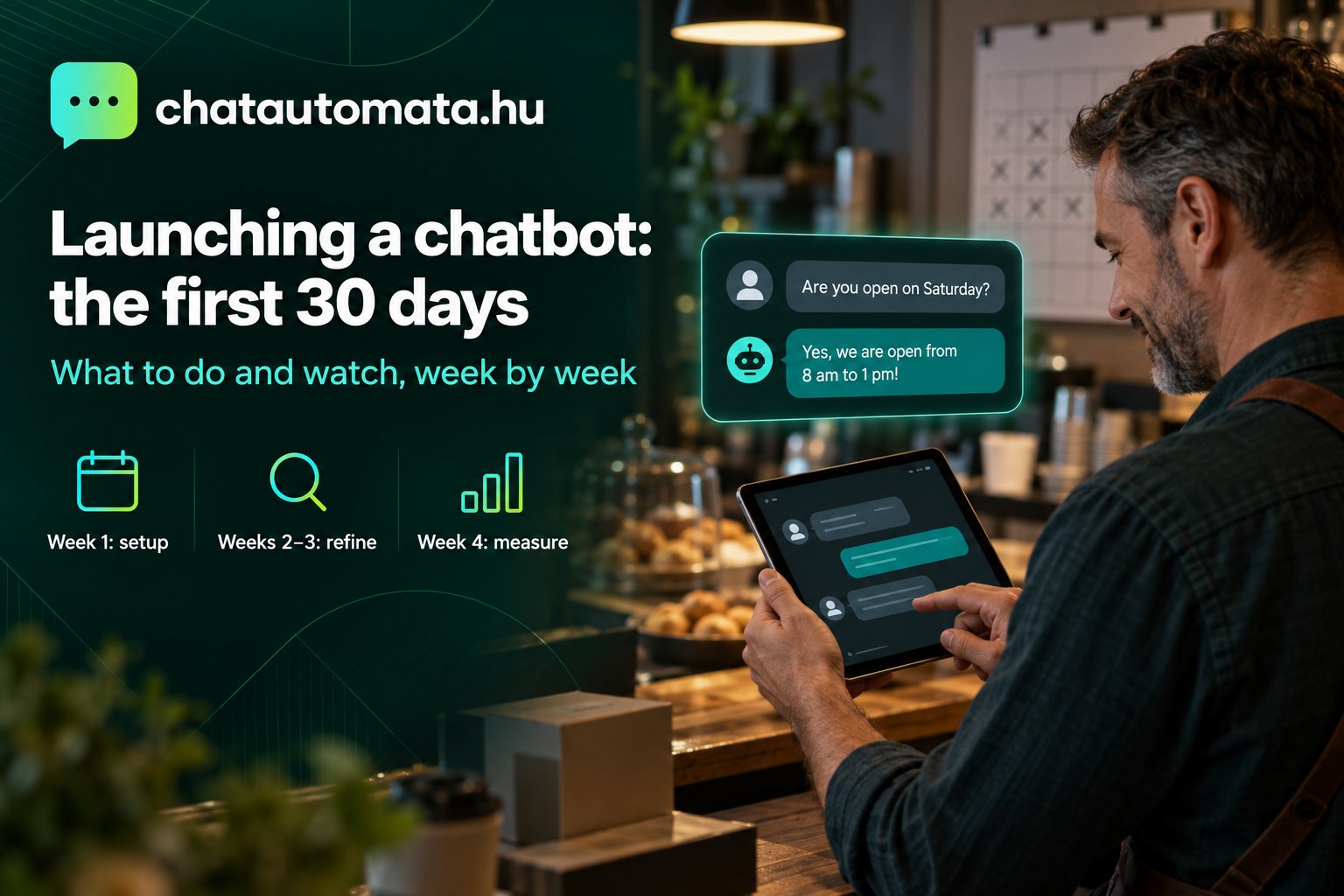
You can put a chatbot on your website in half an hour. That's true, and it's good news. The part people mention less often is that the real work starts afterwards: the first month decides whether your chatbot actually takes work off your plate, or just becomes another little window in the corner of your site that nobody writes to.
In this article we walk through the first 30 days, week by week: what to set up on day one, what to watch in week two, and how to tell at the end of the month whether it was worth it. You don't need technical skills, just 10–15 minutes of attention a day.
Day 0: the launch that really takes half an hour
Day one has three steps. You sign up (email and password, or a Google account) and create your first chatbot. ChatAutomata starts with Hungarian defaults and industry-specific FAQ templates, so you are not staring at a blank page.
Next, you load the knowledge base. The easiest way is to enter your website address: the chatbot reads your content and learns from it. If you have a price list, delivery terms or service descriptions in a document, you can upload those too. Reading takes seconds; reviewing it is up to you, and you shouldn't skip that part.
Finally, you embed it on your website. WordPress, Shopify, Wix or a custom site: one short snippet and the chat appears in the corner.
Spend five minutes on the look as well. The chat window can use a modern or classic design, your brand colours and your own launcher button, and from the Starter plan up your own logo can appear on it. It sounds minor, but visitors are far more willing to write into a window that feels like part of your site than into a box that looks foreign.
And decide one thing right away: who owns the chatbot? In a one-person business the answer is obvious, but if there are two or three of you, pick one person who checks the conversations every day and fills in the missing answers. If it's everyone's job, it's nobody's job.
One tip for day one: before going live, ask it ten things your customers usually ask. Opening hours, prices, delivery, parking, cancellations. Wherever the answer is vague or incomplete, something is missing from the knowledge base. Better that you notice it than your first customer.
Week 1: read every conversation
Your most important task in the first week is simple: read through every conversation. You don't need to step in straight away, just read. You're looking for two things.
What couldn't it answer? ChatAutomata works from your own knowledge base, and when it can't find something it doesn't make up an answer; it asks for the visitor's contact details instead. That's good, because it won't say anything silly. But every such case is a signal: there is a question your website doesn't answer either. Add it as an FAQ, and next time the bot will know.
What words do people use? Your customers rarely use your terminology. You call it a "package offer", they write "how much would the whole thing be". You say "call-out fee", they ask "do you come out to the villages near Debrecen". These phrasings make great FAQ titles, because the chatbot understands the question better, and you get a clearer picture of what your buyers care about.
Don't be alarmed if you add a lot of new FAQs in the first week. That's not a failure, it's part of the training: every question you fill in is a customer who won't need to phone you next time.
Week 2: channels and human handover
Once it answers confidently on the website, you can add more channels. Take the chatbot where your customers already write to you: Messenger, WhatsApp or Instagram DM. The key point is that it answers from the same knowledge base everywhere, so you don't have to set everything up three times.
This week, also decide when it should hand the conversation to you. A complaint, a custom quote or a sensitive matter doesn't belong to the chatbot. With live operator handover you can join any conversation and hand it back to the AI afterwards. If you have a colleague, the Operator Copilot suggests replies to them based on the knowledge base.
Scheduling helps too. You can let the AI answer only outside opening hours while you or a colleague take over during the day, or the other way round, and you can mute it with one switch while you're on holiday. If you haven't decided yet when a machine is better and when a person is, our article on chatbot or live support will help.
Week 3: turn conversations into customers
By week three the chatbot answers well. Now comes the reason you introduced it in the first place: turning people who ask into people who buy.
Lead capture (from the Starter plan). When someone asks for a quote or a specific appointment, the chatbot can ask for their name, email and phone number, and you get notified. The evening enquiry is no longer a forgotten message by morning, but a name on your call-back list.
Actions in the chat. From the Pro plan the chatbot doesn't just talk, it acts: it books appointments in your calendar, searches products in your webshop, checks order status or opens a support ticket. For webshops this matters a lot; see our page for webshops for details.
Guided flows. If there is a set of questions you always ask the same way (what occasion, how many people, which day, what budget), you can break it into steps in the visual flow editor. The chatbot walks the visitor through them in order, and you receive a complete, tidy request at the end. You don't need to build this in week one, but by week three the conversations show you which question sequence repeats most often and is worth automating.
Proactive greetings. You can let the chatbot greet visitors on its own, for example when someone spends more than a minute on your pricing page. Use it carefully: a well-timed "Can I help you choose a package?" is useful; a message that pops up on every page is annoying.
Week 4: measure and decide
At the end of the month, sit down for half an hour and look at the numbers. You don't need a complicated report; four questions are enough.
How many conversations were there, and how many were handled without human help? That shows how much time the chatbot saved you.
How many leads did it capture? And how many of those became actual customers or bookings?
When did people write? Many business owners are surprised here: a surprising number of questions arrive in the evening and at weekends, when nobody would be at the computer. You would have answered those hours later, next morning.
What still can't it answer? If that list is getting shorter, you're on the right track.
One practical point belongs here too: what happens if you run out of monthly messages? The chatbot politely tells the visitor it can't reply for the moment. No data is lost, the knowledge base and settings stay, and it works again as soon as you switch plans. If you're at three quarters of your allowance by mid-month, it's worth upgrading before an evening enquiry gets no answer.
That tells you which plan you need. The free plan covers up to 100 messages a month, enough for a small website. Starter gives you 1,000 messages plus Messenger and WhatsApp; Pro gives 10,000 messages, every channel, in-chat actions and analytics. The full comparison is on the pricing page, and we covered total costs in how much a chatbot costs in Hungary.
An example: the first month at a small patisserie
To make it concrete, take an imagined but very realistic case: a two-person patisserie that also takes cake orders.
On day one the owner enters the website address, and the chatbot reads the opening hours, the pastry range and the cake-ordering terms. She tests it with ten questions and realises that nowhere on the website does it say how many days in advance a cake must be ordered. She adds it as an FAQ.
In week one the conversations show that many people ask about gluten-free and lactose-free options, and whether there is delivery. Neither was answered on the website. Three new FAQs, and from then on the chatbot handles those too.
In week two she switches on Messenger, because most cake orders came from there anyway. She sets it so that she replies during opening hours and the AI after closing. Complaints and custom tiered cakes are always handed to her.
In week three the chatbot collects the name, phone number and requested date of cake orders, so in the morning she finds a tidy list instead of scattered messages.
In week four she looks at the numbers and decides the Starter plan is enough. She doesn't need appointment booking, but she does need Messenger and lead capture.
This isn't a success-story template, it's a realistic schedule. The point is that the chatbot gets a little better every week, because you are teaching it.
What not to expect in the first month
Honestly: a chatbot isn't a miracle, and the first month is not about perfection.
It won't be able to answer everything. It knows exactly as much as you put into the knowledge base. That's deliberate: it would rather ask for contact details than invent something.
It won't sell your expensive service for you. It pre-screens, answers, books and collects details. For decisions that need trust, a larger order or a complaint, you are still needed.
It won't run by itself forever. If your prices, opening hours or range change, the knowledge base needs updating too. Ten minutes a month is enough, but don't skip it.
Don't forget the legal side either: under the EU Artificial Intelligence Act, visitors must know they are talking to a machine. ChatAutomata permanently shows an "AI assistant" label in the header of every chat window, so you don't need to set this up separately. We summarised the details (in Hungarian) on our AI Act page.
In short: on day one you set it up and test it. In week one you read and fill the gaps. In week two you add channels and decide when you take over. In week three conversations turn into leads. In week four you measure and decide. Do this, and by the end of the month you won't have a "we put a chatbot up" project, but a colleague who answers at night and says exactly what you would say.
Try it now: the ChatAutomata Pro plan is free for 14 days, no card needed, and afterwards the free plan stays with you indefinitely. If you're just curious first, try it with your own website on the demo page in a minute.